Login
1. Preparation
- Luckfox-Aura
- USB Type-A to Type-C data cable
- 100M/1000M Ethernet cable and router
- USB-to-TTL module
- Buildroot
- Debian13
Username: root
Password: luckfox
Username: aura
Password: luckfox
2. Login
The development board supports multiple login methods, including ADB, SSH, and serial debug console. You can choose any one of them. It is recommended to use a USB-to-TTL module to log in via the serial debug console, as this provides more comprehensive boot and debug information during development, making it easier to troubleshoot issues.
2.1 ADB Login (Windows)
ADB Installation and Configuration
-
Download the ADB installation package, extract it and you can use it( click here to download ).
-
Right - click on "This PC" and select "Properties"—>"Advanced system settings"—>"Environment variables".

- In "System variables", click "Edit", then create a new entry with the extraction path of ADB.

- Click "OK" to save the environment variables.

ADB Login
- Press the Win + R shortcut keys and enter "CMD" to open the Windows Terminal. Enter ADB commands in the terminal to view ADB - related information.

- If there is only one device, execute the commands in Powershell or CMD.
adb shell
- If multiple devices are connected, you can view the list of currently connected ADB devices through the following command:
adb devices
For example:
C:\Users\cjw> adb devices

List of devices attached

103ea97dececc831     device

d48936ed7d1551fc     device
- After confirming the device, use the following command to log in to the development board via the device serial number:
adb -s d48936ed7d1551fc shell
It is recommended to re - execute this command after plugging or unplugging the device to confirm whether the target device is successfully recognized. If it is not recognized, you can try to replace the Type - C data cable and check if there are issues such as poor contact at the interface.
2.2 ADB Login (ubuntu22.04)
- Download and install the ADB tool.
sudo apt-get install android-tools-adb -y
- If the correct udev rules are not configured, regular users will not be able to access USB devices. When using adb shell, errors such as "udev rules wrong" or insufficient permissions may appear.

- Use the
lsusbcommand to check the device ID.

- Create or edit a udev rules file:
sudo vim /etc/udev/rules.d/51-android.rules
- Add the following content to the file to grant read/write permissions to users in the plugdev group for devices with ID 2207:0019:
SUBSYSTEM=="usb", ATTR{idVendor}=="2207", ATTR{idProduct}=="0019", MODE="0666", GROUP="plugdev"
- After saving the file, change its permission:
sudo chmod 644 /etc/udev/rules.d/51-android.rules
- Reload the udev rules:
sudo udevadm control --reload-rules\nsudo service udev restart
- Reconnect the device: unplug and reinsert it to ensure the new rules take effect.

2.3 SSH Login (windows)
The Luckfox Aura series enables the SSH service by default in the latest firmware. Connect the board to a router via Ethernet, then use the IP address assigned by the router to log in via SSH.
2.3.1 Dynamic IP Acquisition
To log in using a dynamic IP via the network port, simply connect one end of the network cable to the development board and the other end to a router or switch. The development board can then obtain an IP address through udhcpc. Ensure that the development board and the computer are on the same local area network, and the SSH service is enabled (enabled by default), and you can log in via SSH using the obtained IP address.
-
Download and install a local area network IP scanning tool ( click here to download ).
-
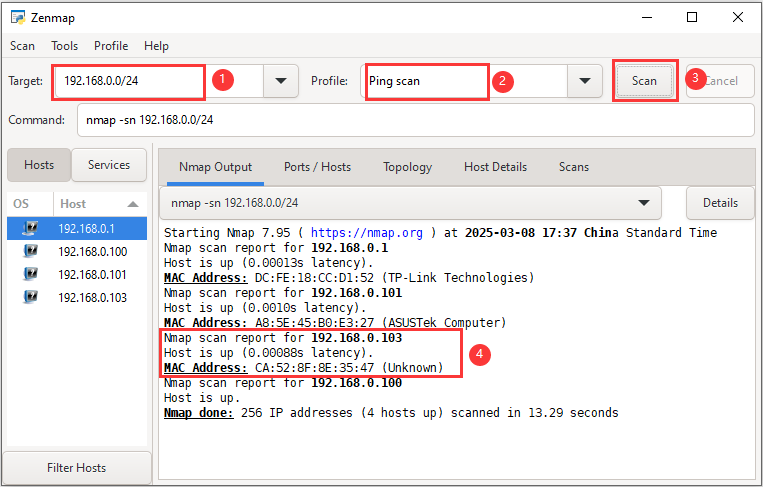
Run Zenmap, enter your own network segment, select
Ping scan, and click theScanbutton to scan the IP addresses within the current local area network. -
Record the current IP addresses.
-
Power on the device and make sure the device is connected to the network.
-
Click the Scan button again to scan the IP addresses within the current local area network.
-
Exclude all previously recorded IP addresses, and the remaining one is the IP address of the development board.
2.3.2 SSH Login
- Download the remote login tool and extract it for use. (Click here to download)
- Open the MobaXterm remote login tool, select Session → SSH, and enter the IP address obtained earlier (for example,
10.10.20.5) in the Remote host field. (Please replace it with your actual IP address.)

- After filling in the information, click OK, then enter the login username and password. Please refer to the Preparation section for the login credentials.

- When entering the password, nothing will be displayed on the screen. This is normal. Press Enter after finishing the input to log in.
- The Ubuntu system login username is pico, not root. Please make sure to distinguish between them.
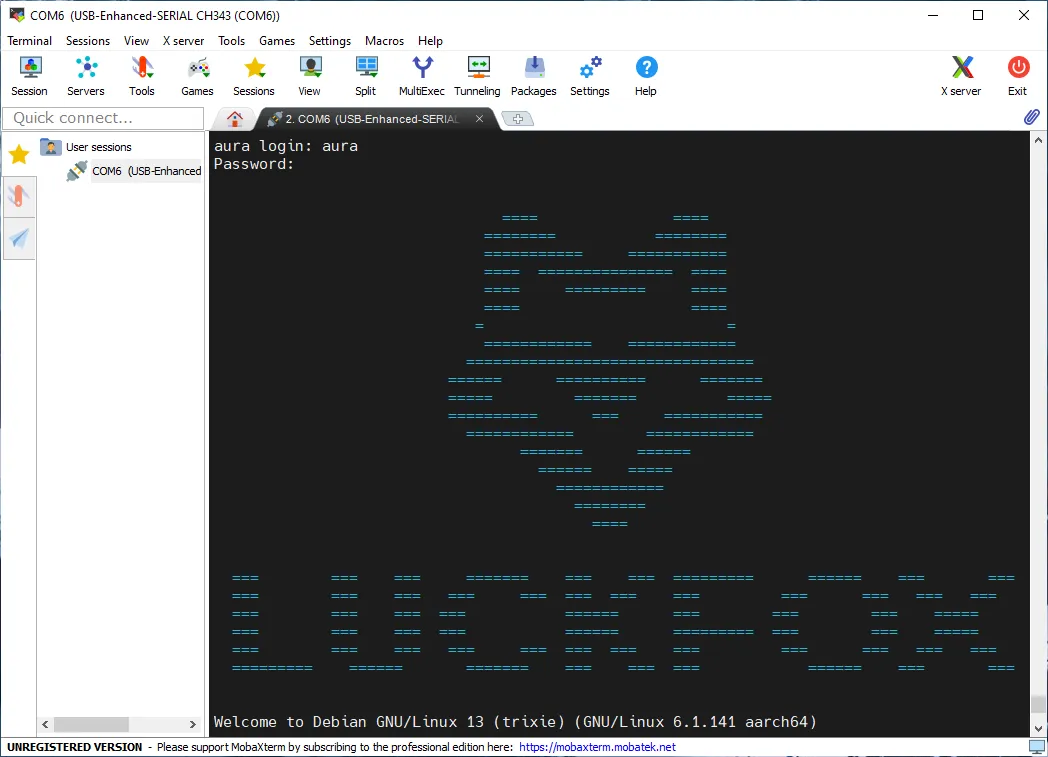
- You have now successfully logged in to the development board:

2.4 Serial Login
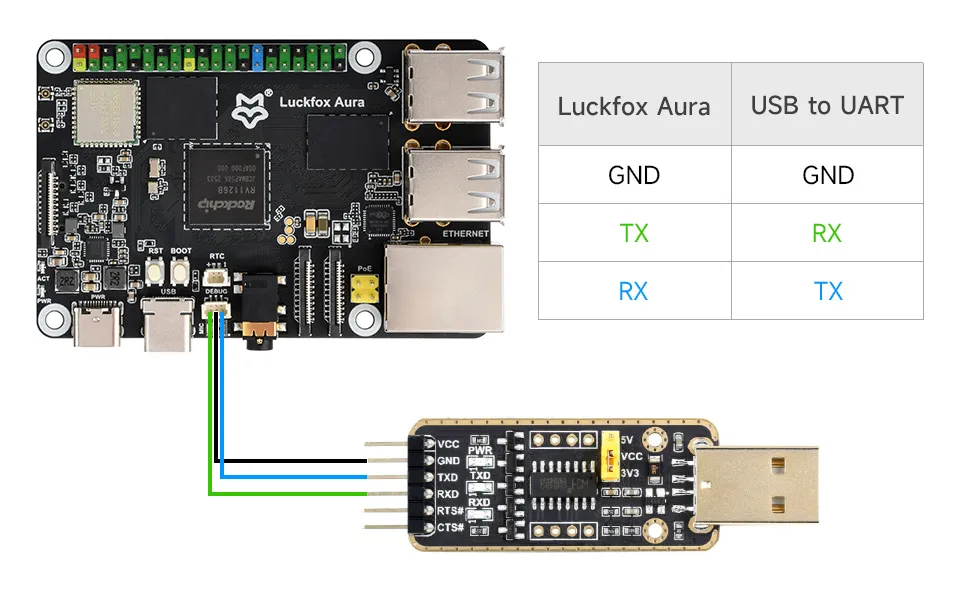
First, connect one end of the serial module to the computer, and the other end to the TX, GND, and RX pins of the Luckfox Aura interface. Refer to the wiring diagram below for proper connections.
- Download the remote login tool and extract it for direct use(Click here to download)。
- Open Computer Settings, search for Device Manager, check the corresponding COM port, and record it.

- Select Session → Serial, and set the serial baud rate to 1500000 (1.5 Mbps).
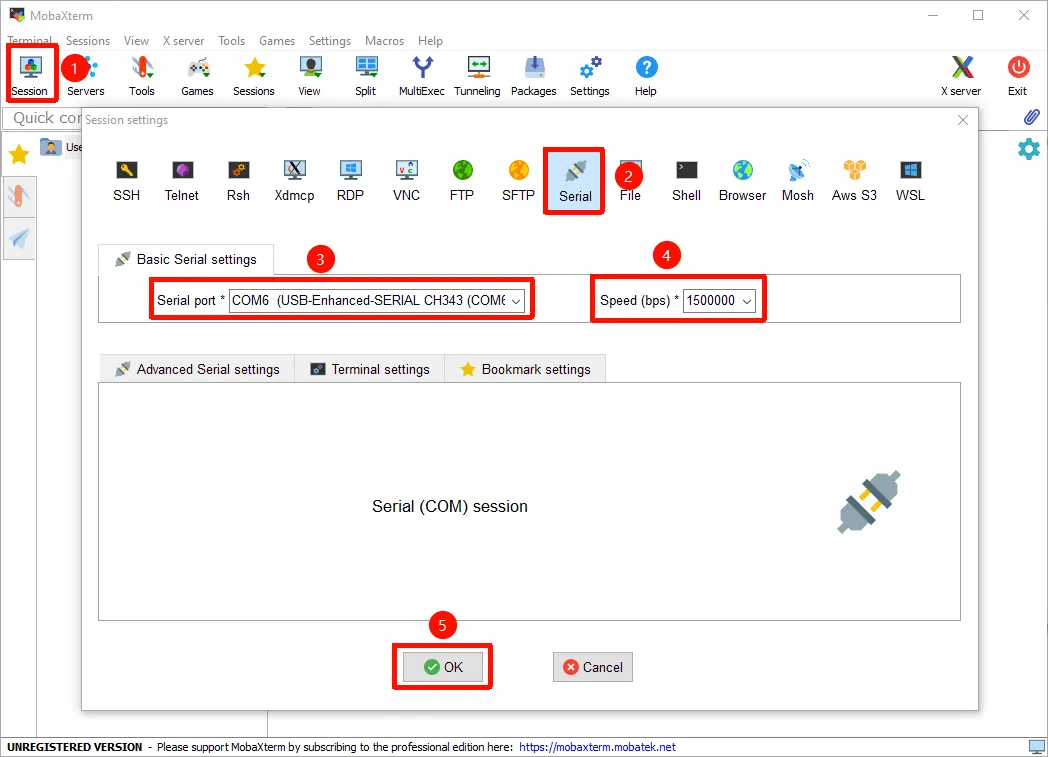
- Click OK, press Enter, then input the login username and password to access the system.