Login
1. Preparation Work
- Luckfox Nova development board
- USB Type-A to Type-C data cable
- 100M/1000M Ethernet cable, and router
- USB to TTL module
The default baud rate of RK3308 is 1500000. Some USB to serial port chips cannot reach a baud rate of 1500000, and there may also be differences among different series of the same chip. Therefore, be sure to confirm whether it is supported before purchasing. It is recommended to use CH343, FT232, and CP2102 serial port modules.
2. Login
The development board supports multiple login methods, including ADB, SSH, and the debugging serial port. You can choose any one of them. It is recommended to use a USB to TTL module to log in through the debugging serial port during development, so you can obtain more complete startup and debugging information for troubleshooting.
2.1 ADB Login
ADB Installation and Configuration
-
Download the ADB installation package, extract it and you can use it( click here to download ).
-
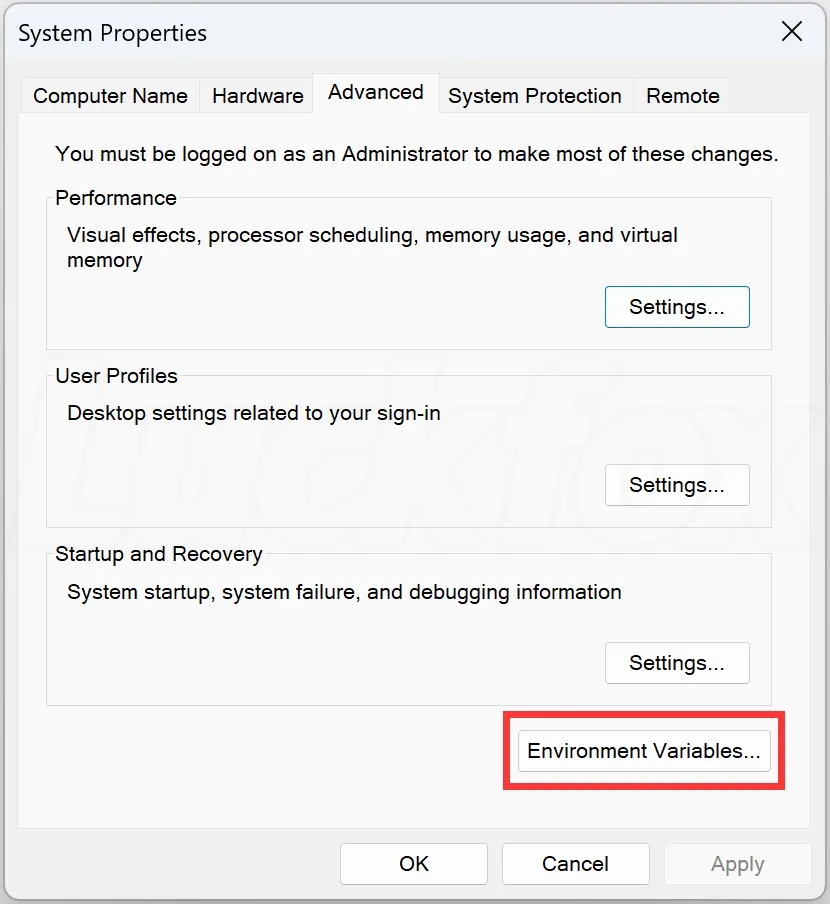
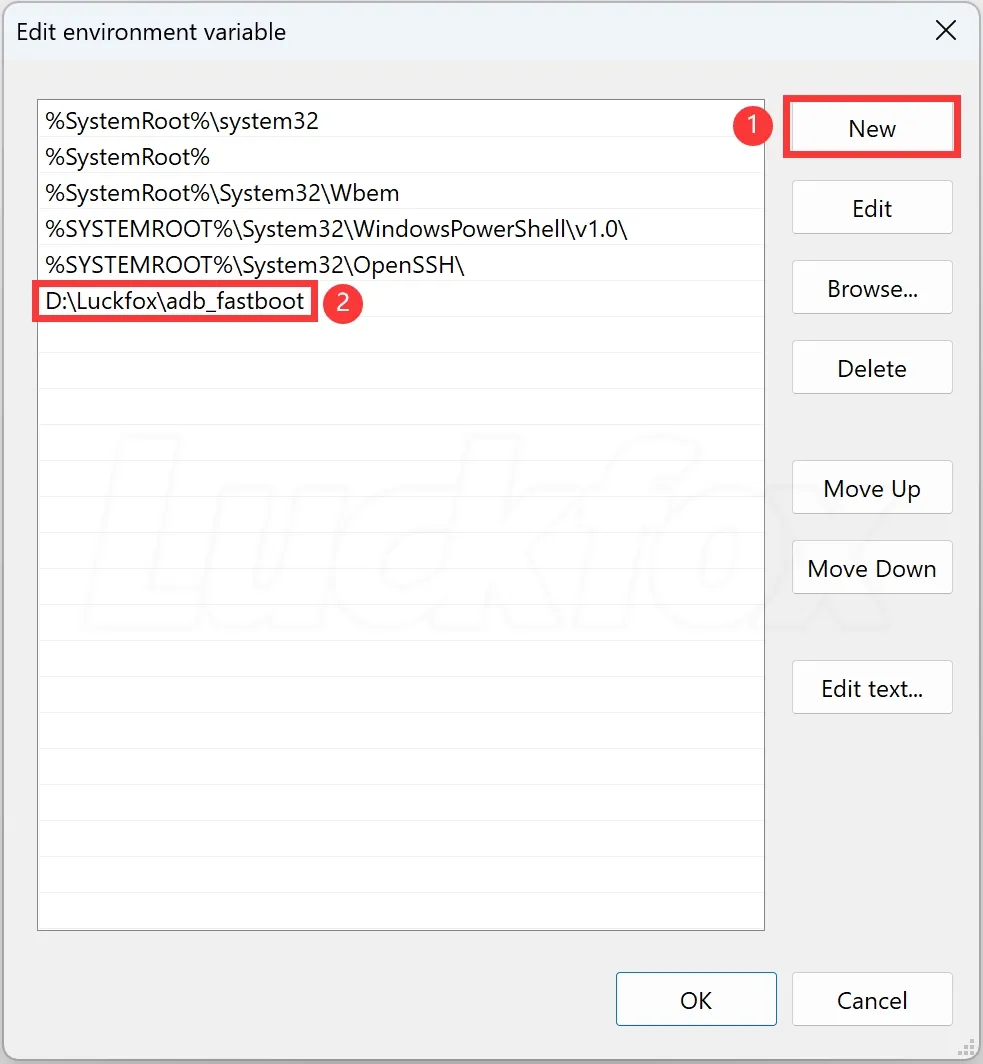
Right - click on "This PC" and select "Properties"—>"Advanced system settings"—>"Environment variables".
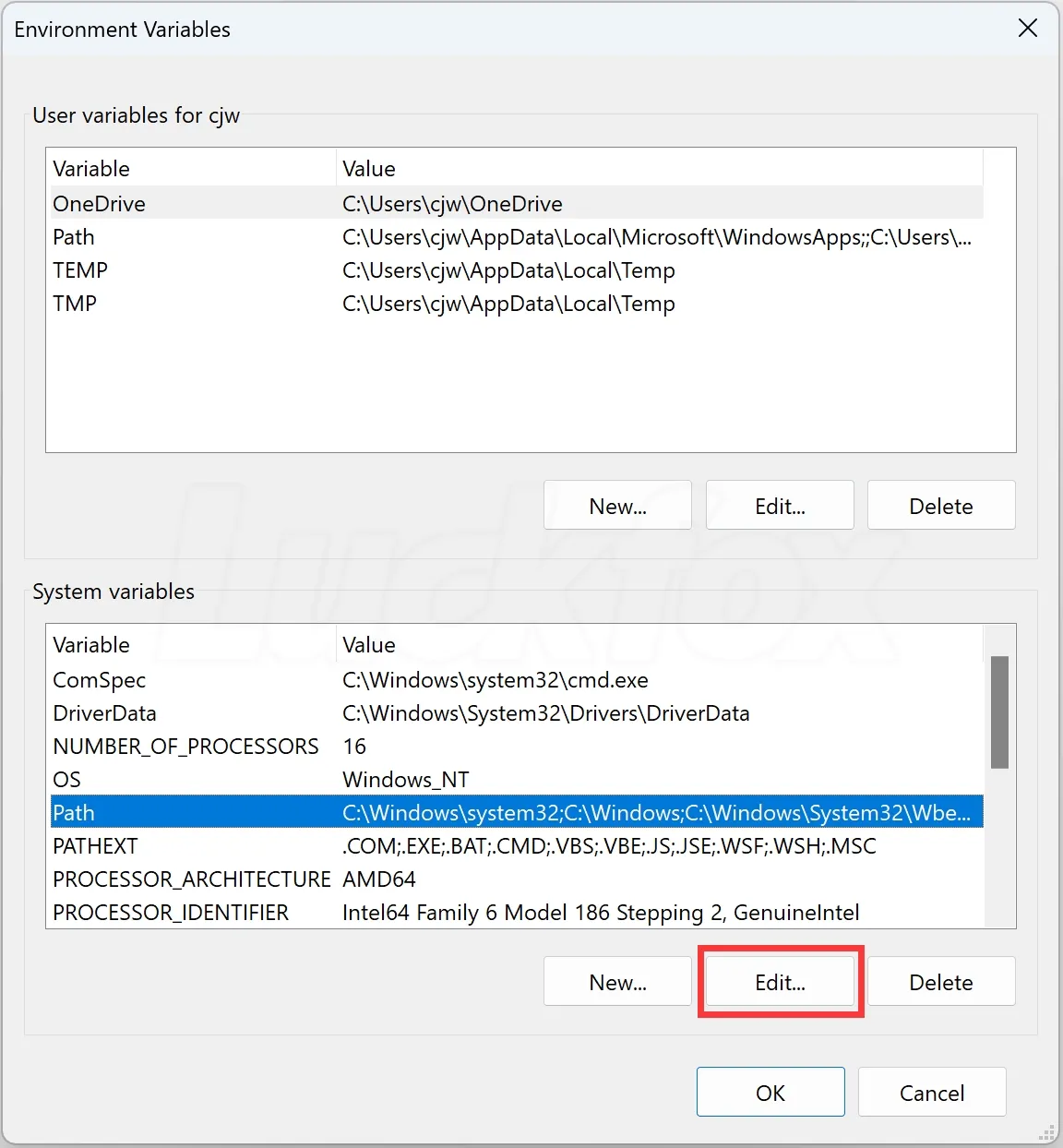
- In "System variables", click "Edit", then create a new entry with the extraction path of ADB.
- Click "OK" to save the environment variables.
ADB Login
- Press the Win + R shortcut keys and enter "CMD" to open the Windows Terminal. Enter ADB commands in the terminal to view ADB - related information.
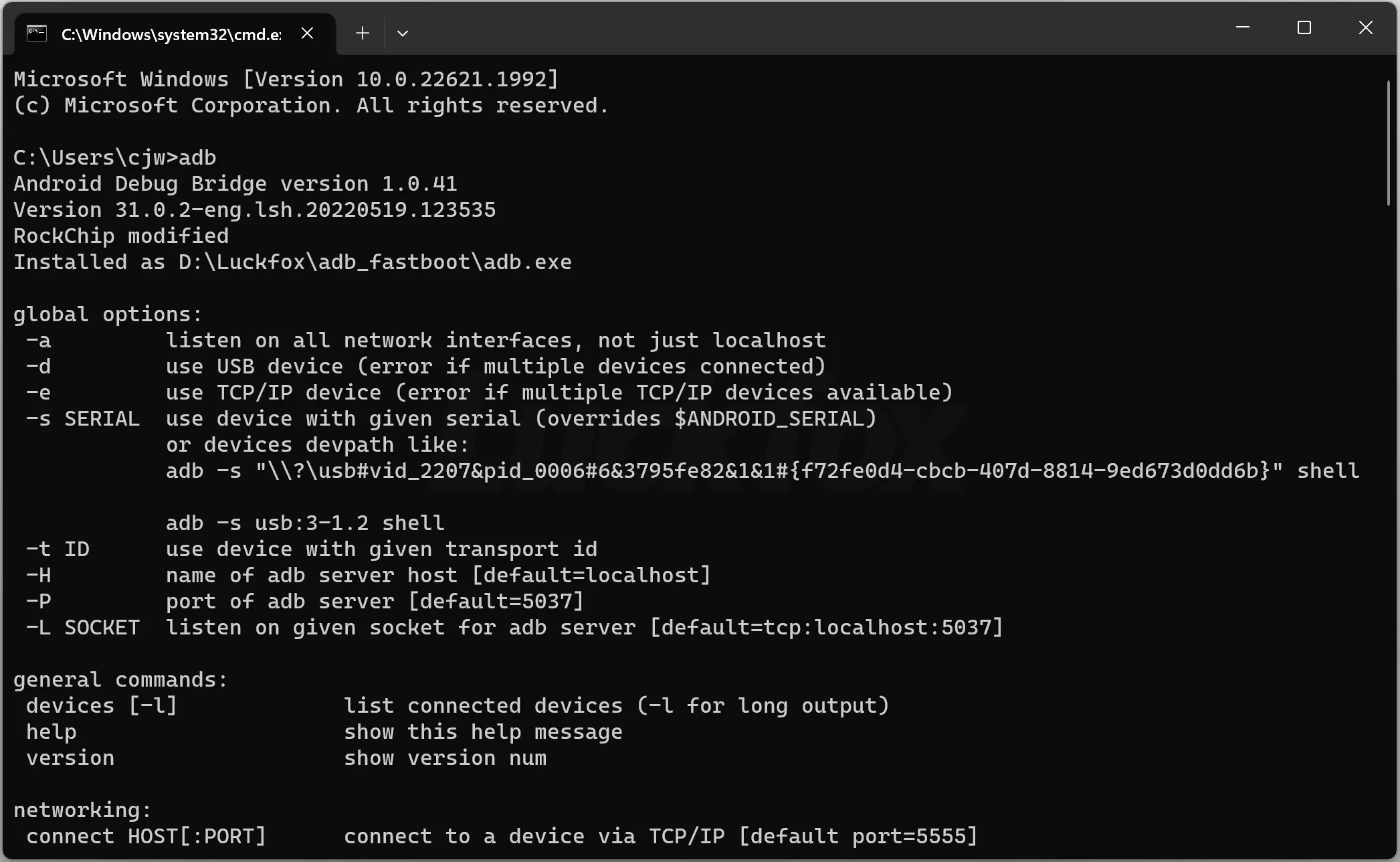
- If there is only one device, execute the commands in Powershell or CMD.
adb shell
- If multiple devices are connected, you can view the list of currently connected ADB devices through the following command:
adb devices
For example:
C:\Users\cjw> adb devices

List of devices attached

103ea97dececc831     device

d48936ed7d1551fc     device
- After confirming the device, use the following command to log in to the development board via the device serial number:
adb -s d48936ed7d1551fc shell
It is recommended to re - execute this command after plugging or unplugging the device to confirm whether the target device is successfully recognized. If it is not recognized, you can try to replace the Type - C data cable and check if there are issues such as poor contact at the interface.
2.2 SSH Login
- Buildroot
Login Name: root
Login Password: luckfox
Obtaining the IP Address
To log in via Ethernet using a dynamic IP, simply connect one end of the Ethernet cable to the development board and the other end to a router. The board will obtain an IP address via udhcpc.
Make sure the development board and your computer are on the same local network and that the SSH service is enabled (enabled by default). You can then log in via SSH using the obtained IP address.
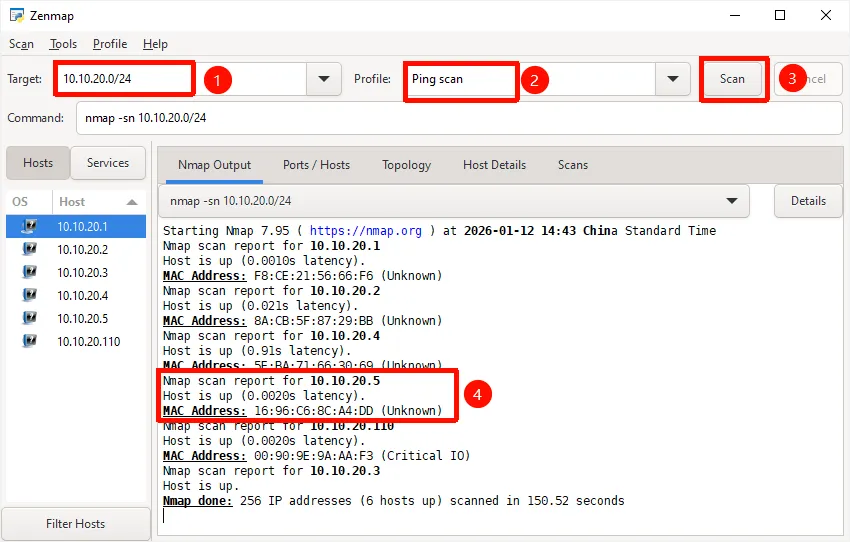
- Download and install a LAN IP scanning tool(Click here to download).
- Run Zenmap, enter your network segment, select
Ping scan, and click the Scan button to scan IP addresses on the local network. - Record the current IP addresses.
- Power on the device and make sure it is connected to the network.
- Click the Scan button again to rescan the local network IP addresses.
- Exclude all previously recorded IP addresses. The remaining one is the IP address of the development board.
SSH Login Steps
- Download the remote login tool and extract it for use. (Click here to download)
- Open the MobaXterm remote login tool, select Session → SSH, and enter the IP address obtained earlier (for example,
10.10.20.5) in the Remote host field. (Please replace it with your actual IP address.)
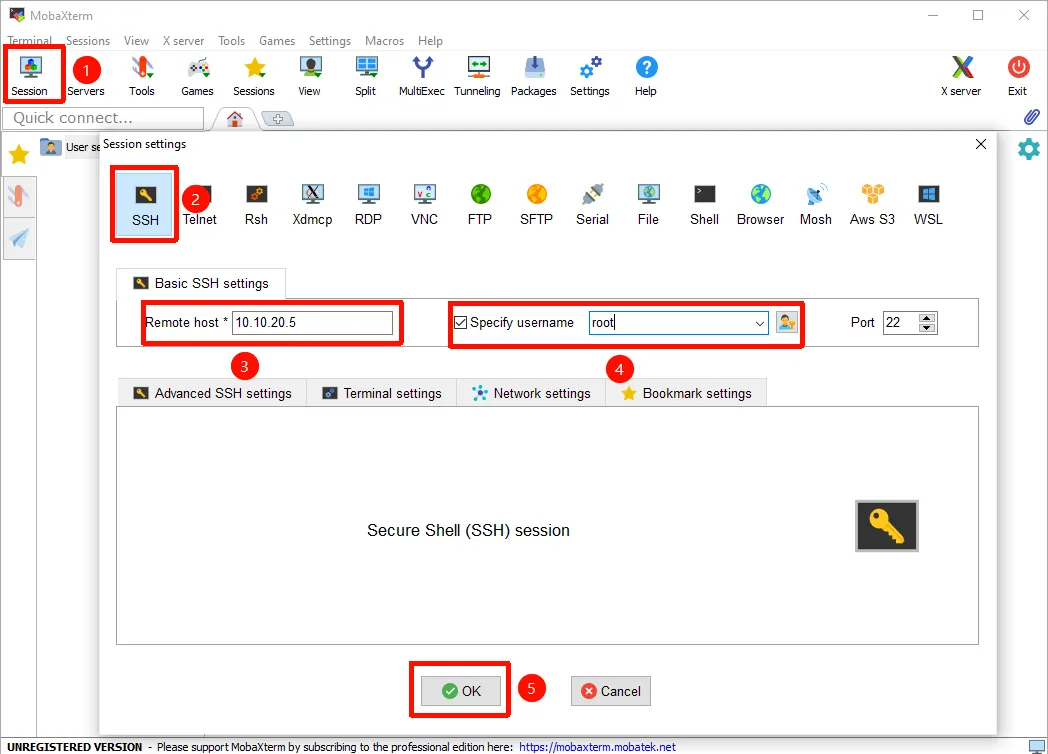
- After filling in the information, click OK, then enter the login username and password. Please refer to the Preparation section for the login credentials.
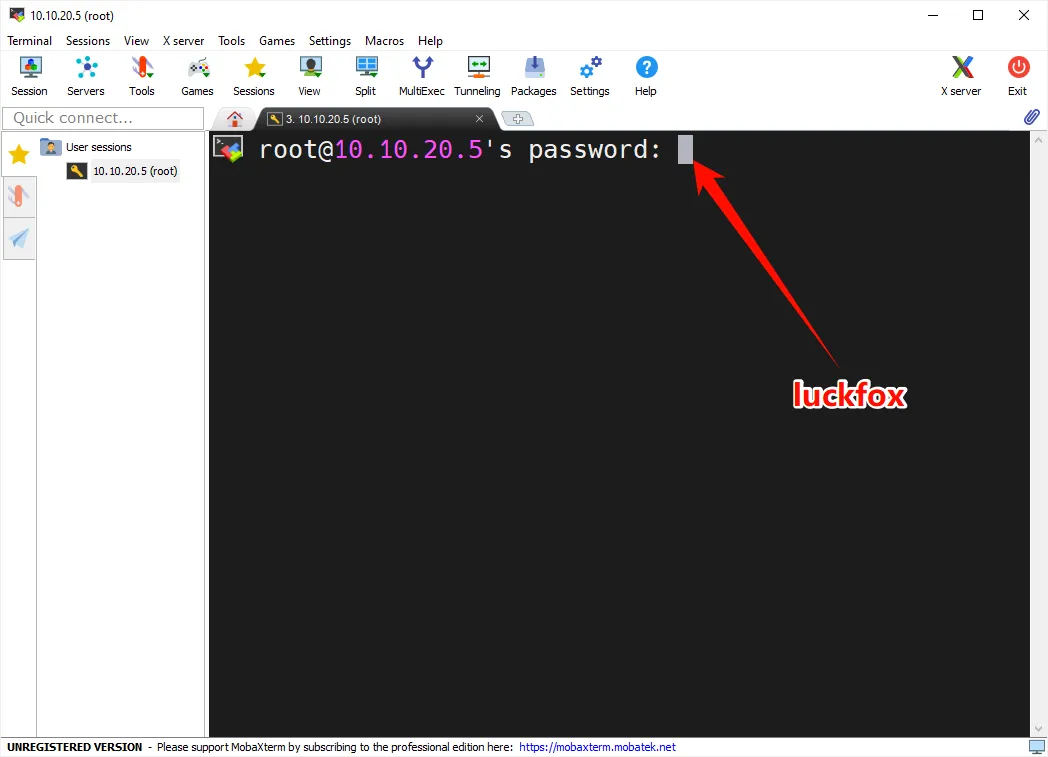
- When entering the password, nothing will be displayed on the screen. This is normal. Press Enter after finishing the input to log in.
- The Ubuntu system login username is pico, not root. Please make sure to distinguish between them.
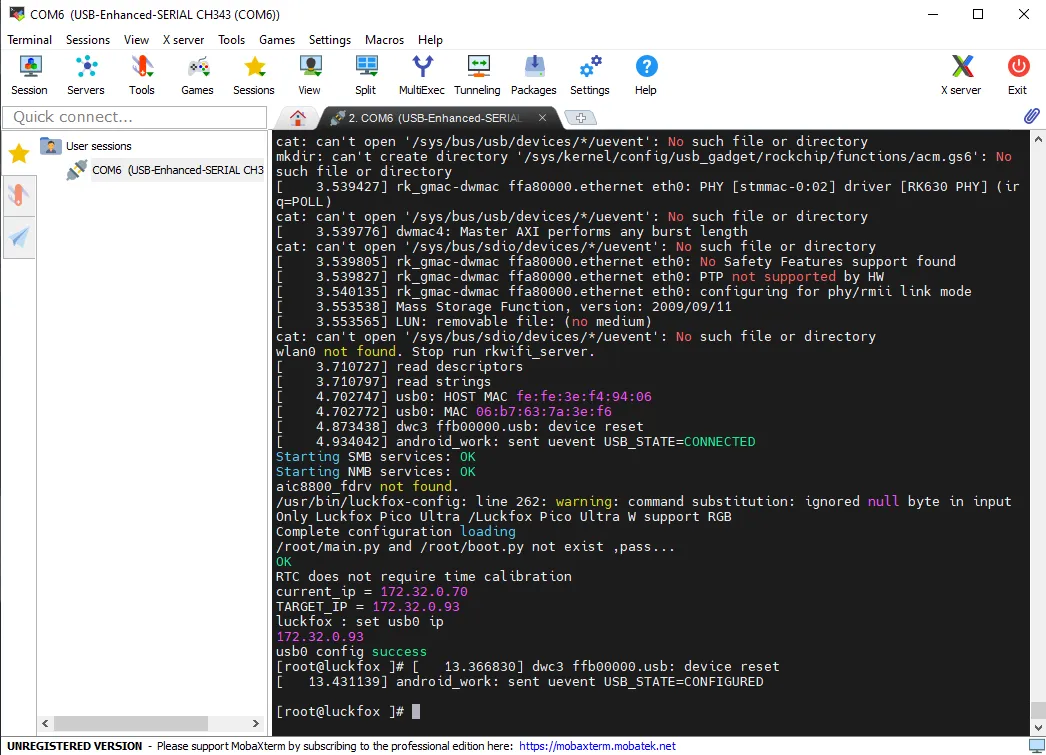
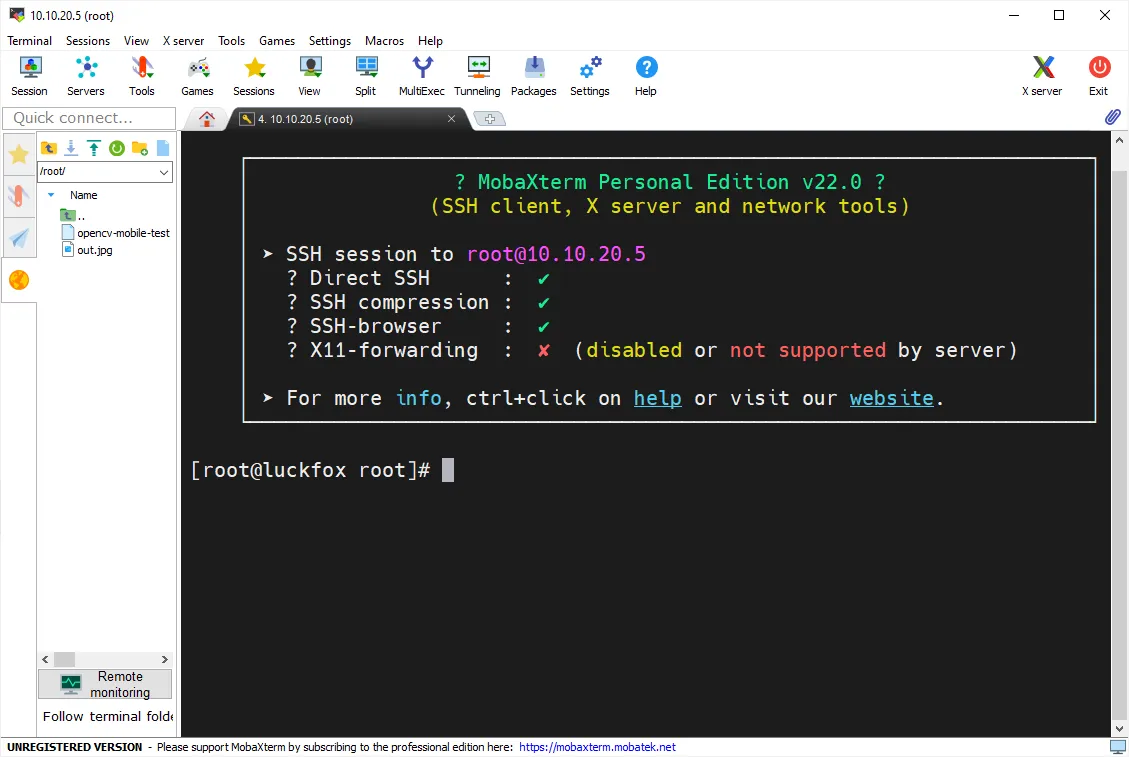
- You have now successfully logged in to the development board:
2.3 Serial Port Login
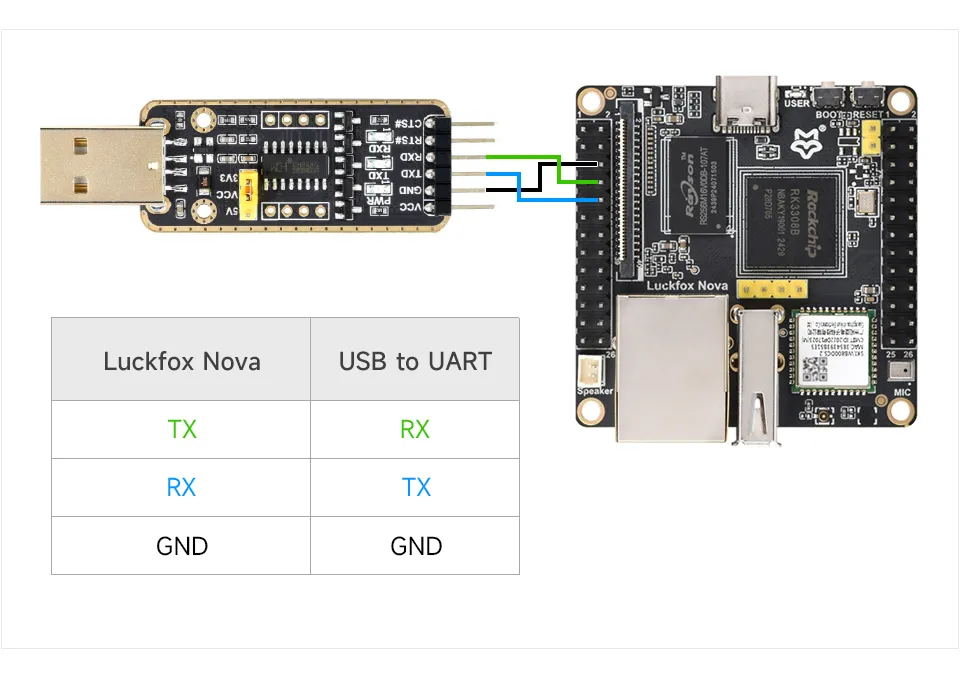
First, connect one end of the serial port module to the computer, and connect the other end to the TX, GND, and RX pins of Nova. The wiring is shown below:
-
Download a serial login tool and extract it for use.( Click here to download ).
-
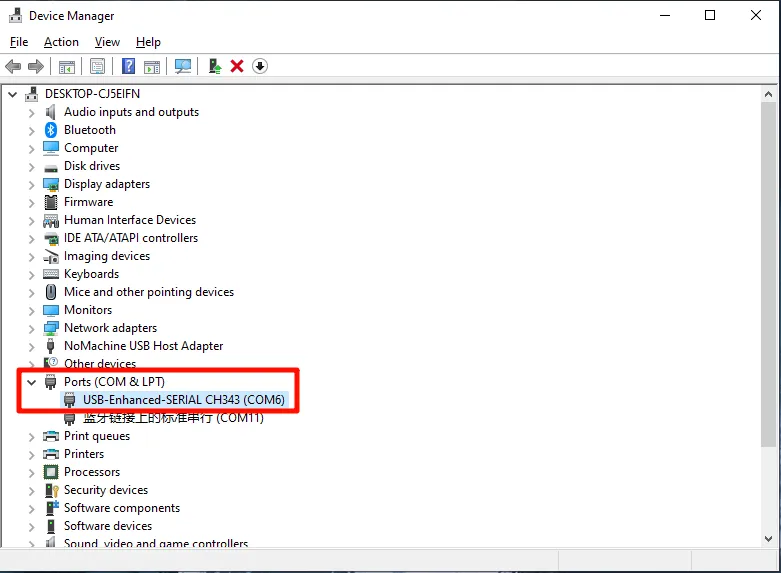
Open your computer's settings, search for Device Manager, and check the COM port number assigned to the serial device. Take note of it.
- In the serial tool, go to Session → Serial, and set the baud rate to 115200.
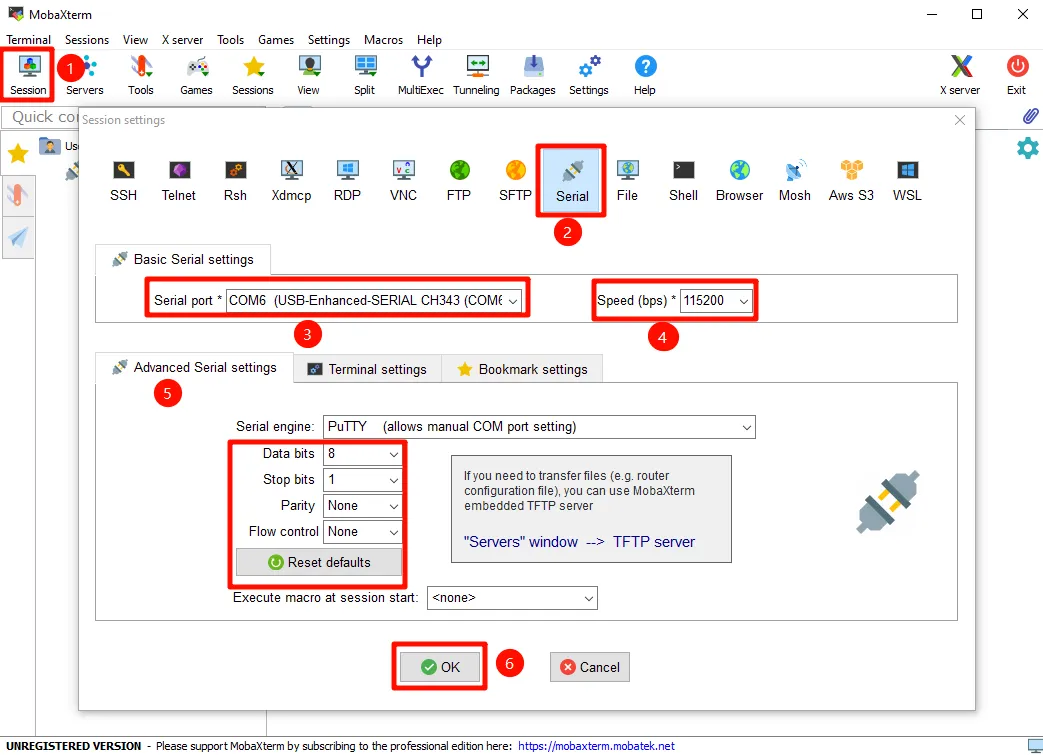
- Click OK, then press Enter, and input the login name and password to log in.