SDK 打包文件
1. 将自定义文件打包至系统镜像
Luckfox Pico SDK 在打包前会通过 overlay 机制将指定文件添加到根文件系统中。
-
创建
overlay目录:在project/cfg/BoardConfig_IPC/overlay下新增自定义文件夹(例如custom-overlay)。 -
按根文件系统结构添加文件:
# 示例:overlay-luckfox-buildroot-shadowproject/cfg/BoardConfig_IPC/overlay/custom-overlay/└── etc├── samba│ ├── smb.conf│ └── smbpasswd├── shadow└── ssh└── sshd_config -
配置板级支持文件。在
project/cfg/BoardConfig_IPC/BoardConfig.mk中添加:export RK_POST_OVERLAY="custom-overlay" # 替换为实际文件夹名称 -
编译打包:
./build.sh firmware # 生成包含 overlay 的 rootfs.img
2. 文件共享
虚拟机和 Windows 电脑之间文件传输可以使用 Samba 服务来实现文件共享,在 Windows 的网络邻居中,可以轻松访问虚拟机的文件系统,非常便捷。
2.1 Ubuntu 环境配置
-
下载和安装 Samba 。
sudo apt-get updatesudo apt-get install samba -y -
配置Samba服务。
sudo vim /etc/samba/smb.conf#在文件末尾填入以下内容[share]comment = share folderbrowseable = yespath = /home/luckfoxcreate mask = 0700directory mask = 0700valid users = luckfoxforce user = luckfoxforce group = luckfoxpublic = yesavailable = yeswritable = yes- 其中luckfox为主机名,根据自己实际主机名填写。
-
设置分享账户密码。
sudo smbpasswd -a luckfox -
查看虚拟机或主机的 IP 地址。
luckfox@luckfox:~/Luckfox-Pico/luckfox-pico$ ifconfigenp0s3: flags=4163<UP,BROADCAST,RUNNING,MULTICAST> mtu 1500inet 192.168.10.61 netmask 255.255.252.0 broadcast 192.168.11.255inet6 fe80::814f:a51e:5f24:f0f7 prefixlen 64 scopeid 0x20<link>ether 08:00:27:d2:60:b9 txqueuelen 1000 (Ethernet)RX packets 699559 bytes 754875799 (754.8 MB)RX errors 0 dropped 4 overruns 0 frame 0TX packets 53024 bytes 3278048 (3.2 MB)TX errors 0 dropped 0 overruns 0 carrier 0 collisions 0lo: flags=73<UP,LOOPBACK,RUNNING> mtu 65536inet 127.0.0.1 netmask 255.0.0.0inet6 ::1 prefixlen 128 scopeid 0x10<host>loop txqueuelen 1000 (Local Loopback)RX packets 190 bytes 24144 (24.1 KB)RX errors 0 dropped 0 overruns 0 frame 0TX packets 190 bytes 24144 (24.1 KB)TX errors 0 dropped 0 overruns 0 carrier 0 collisions 0
2.2 Windows 环境
-
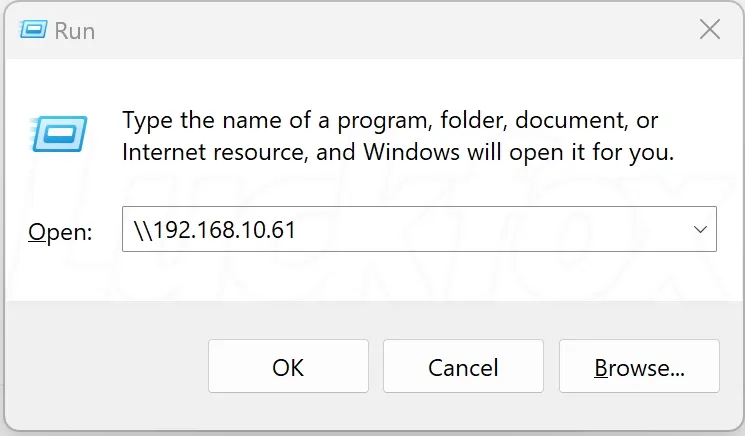
在 Windows 地址栏输入(根据自己实际 IP 地址填写)。
-
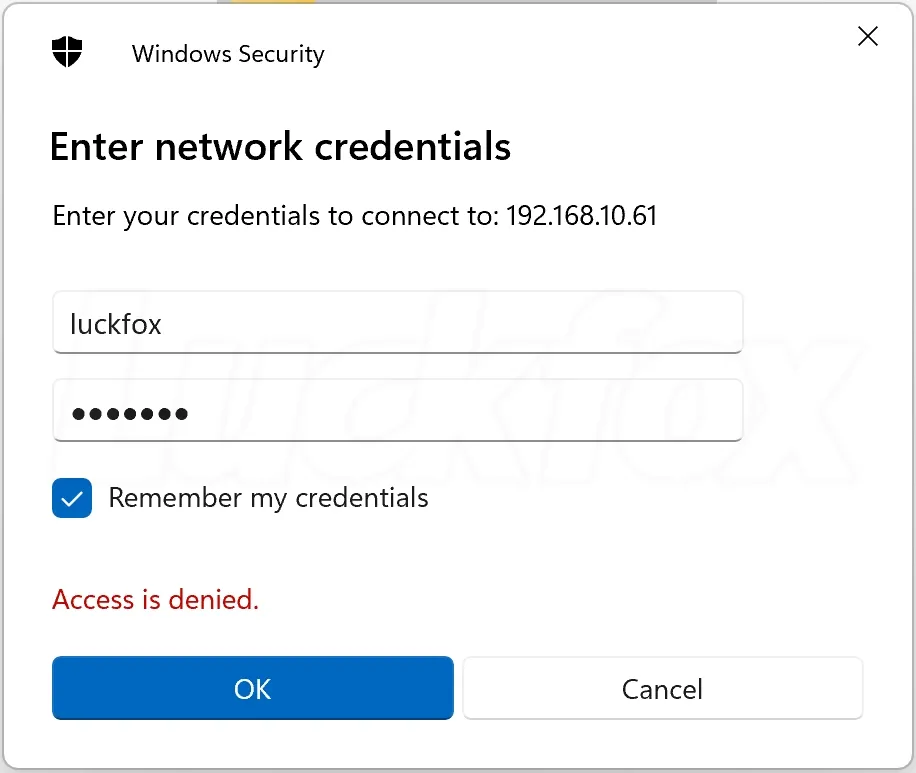
输入虚拟机账户密码默认都是 luckfox 。
-
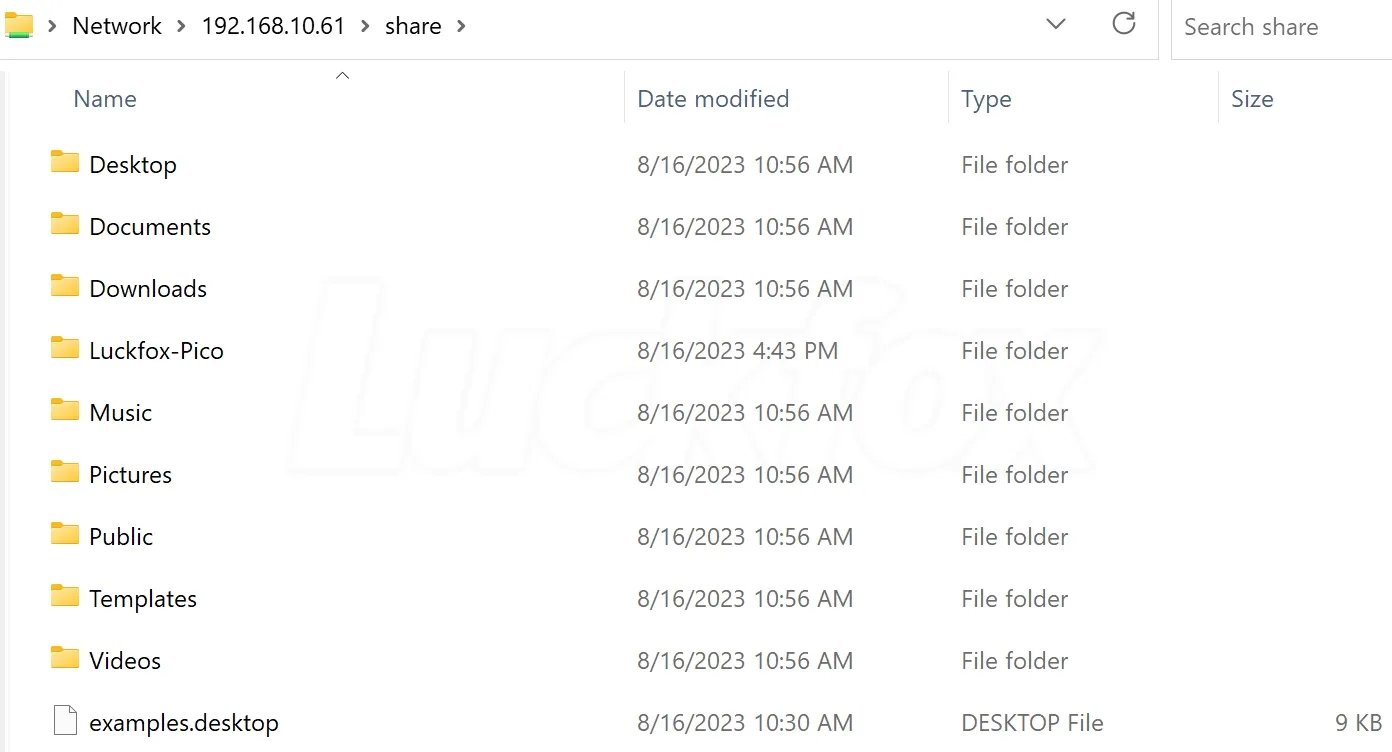
成功登录虚拟机或主机。