CSI Camera
The Luckfox Pico RV1103 is equipped with the SC3336 3MP Camera (A), which uses the SmartSens SC3336 image sensor supporting up to 3 megapixels. This camera offers high sensitivity, high signal-to-noise ratio, and excellent low-light performance, delivering more detailed and true-to-life full-color night vision images while adapting effectively to changes in ambient lighting conditions.
- This tutorial applies only to the Buildroot system. The Ubuntu system is not supported at this time.
1. Hardware Connection
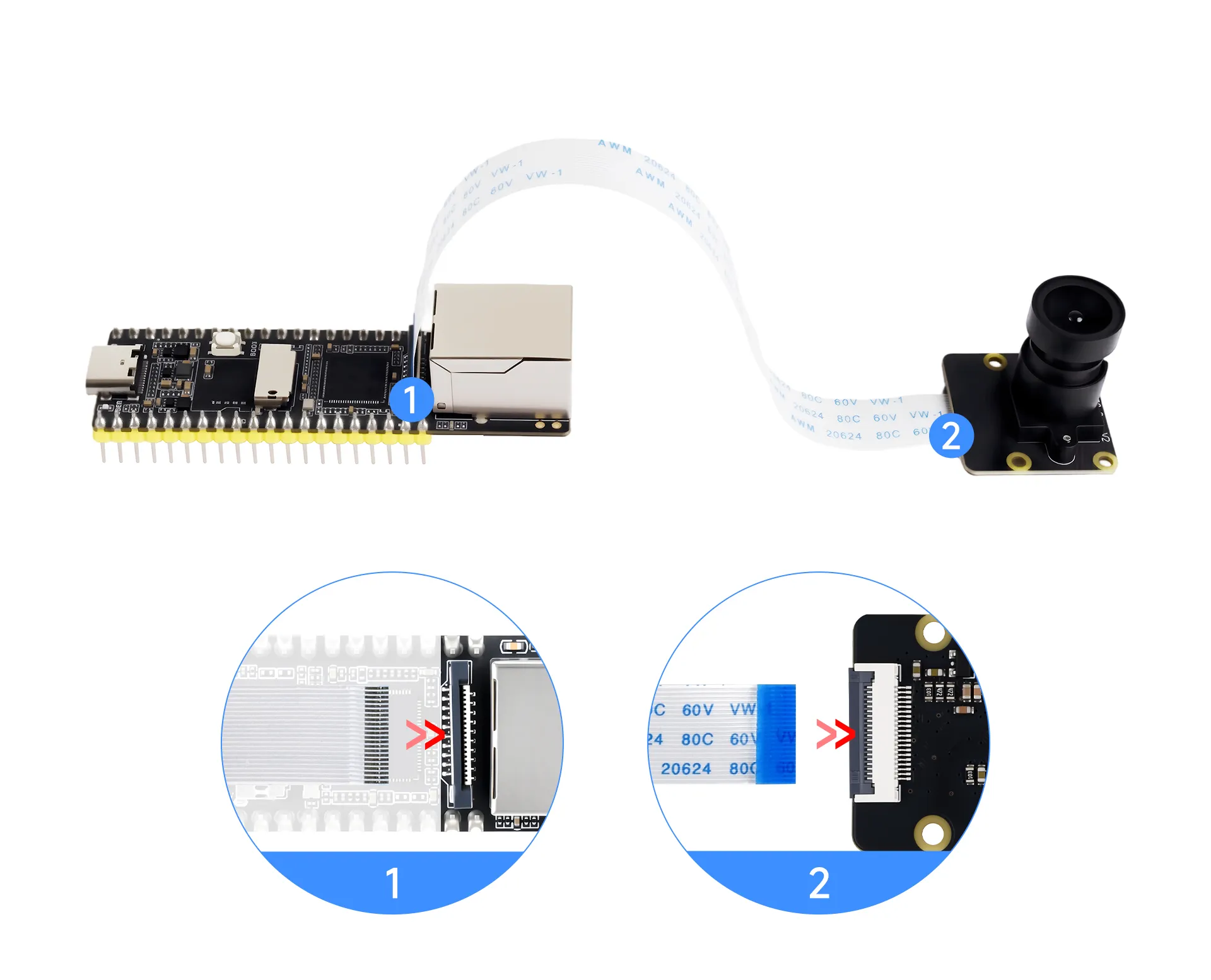
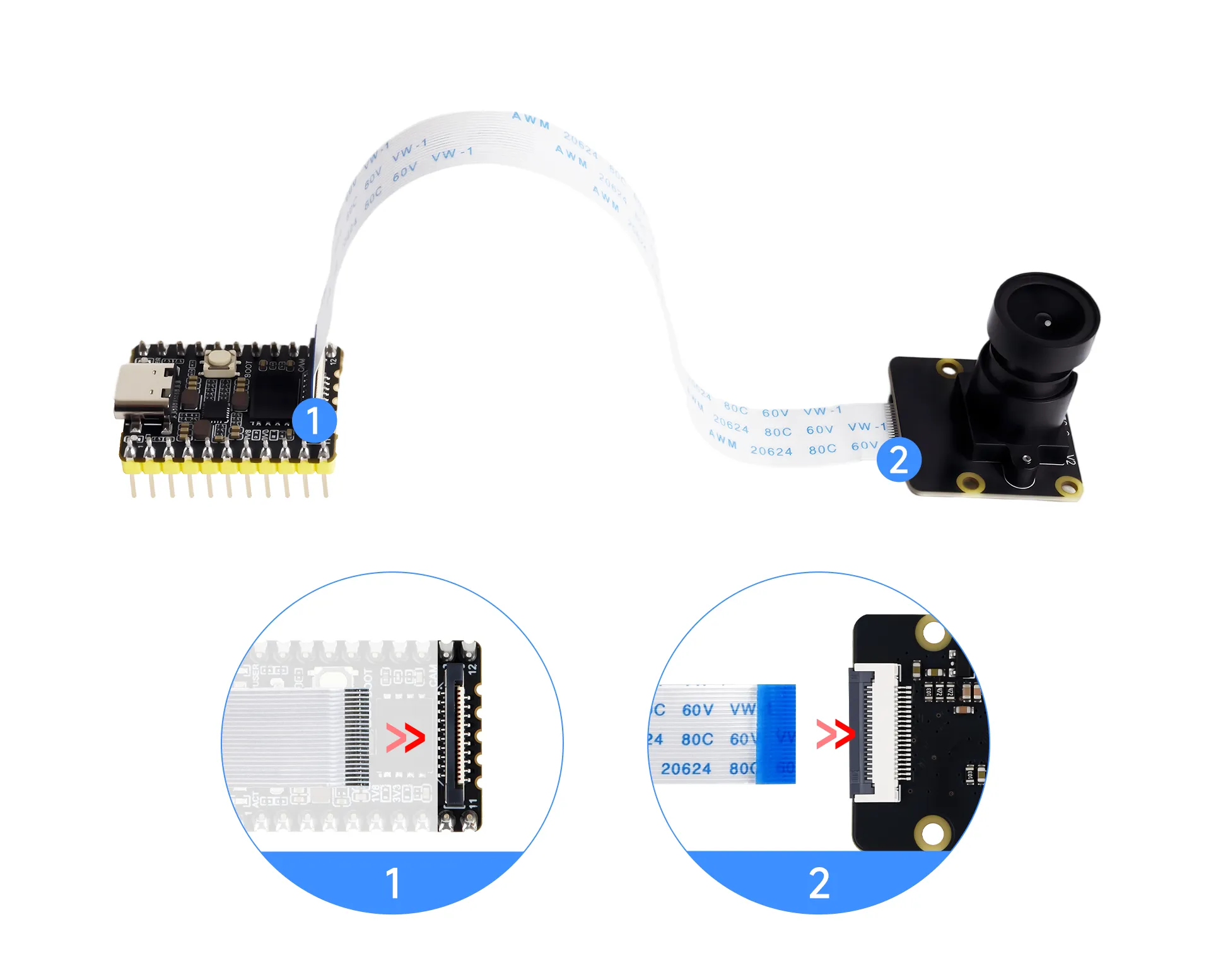
Before installing the camera, please open the black latch on the CSI ribbon cable. It is important to apply gentle and even force on both sides at the same time when opening the latch. Avoid applying force on only one side, as this may damage the connector.
Luckfox Pico / Pico Plus / Pico Mini: The blue side of the camera ribbon cable should face the chip side of the board.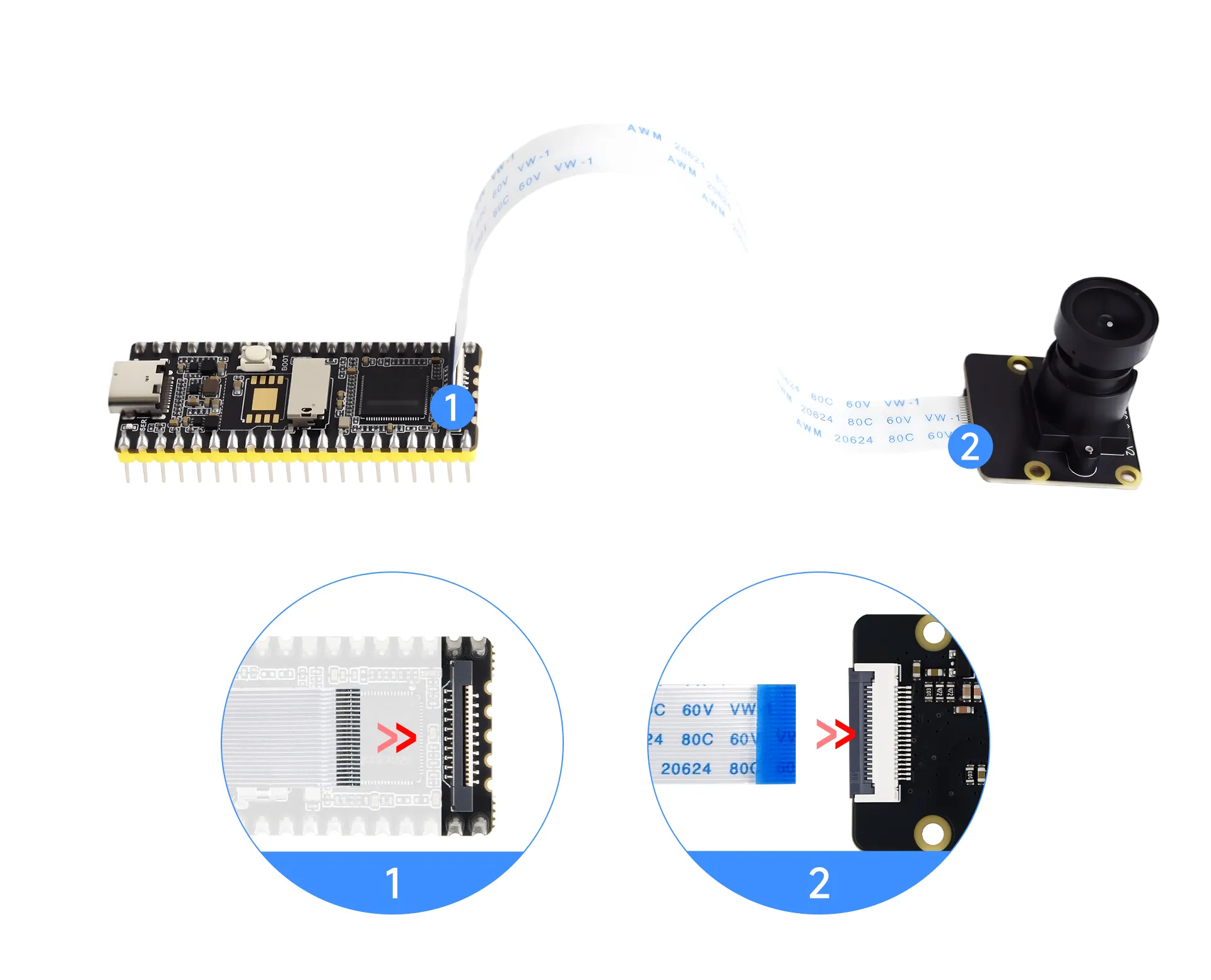
2. Checking the Camera and IP Address
Note: The orientation of the text on the blue ribbon cable from the factory may vary. Regardless of the text direction, just ensure that the metal side of the camera ribbon cable faces the RV1106. Please verify that the connection is proper before powering on.
-
Inspect the camera. If the camera is successfully recognized, an "rkipc.ini" file will be generated.
# ls /userdata/ethaddr.txt lost+found image.bmp video0 video2 rkipc . ini video1 -
Obtain the device's IP address. The default USB static IP address for Luckfox Pico/Pico Plus/Pico Mini is 172.32.0.93.
# ifconfiglo Link encap:Local Loopbackinet addr:127.0.0.1 Mask:255.0.0.0UP LOOPBACK RUNNING MTU:65536 Metric:1RX packets:0 errors:0 dropped:0 overruns:0 frame:0TX packets:0 errors:0 dropped:0 overruns:0 carrier:0collisions:0 txqueuelen:1000RX bytes:0 (0.0 B) TX bytes:0 (0.0 B)usb0 Link encap:Ethernet HWaddr 9E:49:D7:C8:F4:A3inet addr:172.32.0.93 Bcast:172.32.255.255 Mask:255.255.0.0UP BROADCAST RUNNING MULTICAST MTU:1500 Metric:1RX packets:763 errors:0 dropped:116 overruns:0 frame:0TX packets:4 errors:0 dropped:0 overruns:0 carrier:0collisions:0 txqueuelen:1000RX bytes:149160 (145.6 KiB) TX bytes:1544 (1.5 KiB) -
For Luckfox Pico/Pico Plus/Pico Mini, due to the presence of an Ethernet port, you can also view the wired IP address.
# ifconfigeth0 Link encap:Ethernet HWaddr 82:D8:B7:D8:94:5Ainet addr:192.168.10.86 Bcast:192.168.11.255 Mask:255.255.252.0UP BROADCAST RUNNING MULTICAST MTU:1500 Metric:1RX packets:144 errors:0 dropped:0 overruns:0 frame:0TX packets:2 errors:0 dropped:0 overruns:0 carrier:0collisions:0 txqueuelen:1000RX bytes:11210 (10.9 KiB) TX bytes:684 (684.0 B)Interrupt:51lo Link encap:Local Loopbackinet addr:127.0.0.1 Mask:255.0.0.0UP LOOPBACK RUNNING MTU:65536 Metric:1RX packets:0 errors:0 dropped:0 overruns:0 frame:0TX packets:0 errors:0 dropped:0 overruns:0 carrier:0collisions:0 txqueuelen:1000RX bytes:0 (0.0 B) TX bytes:0 (0.0 B)usb0 Link encap:Ethernet HWaddr F2:84:8E:BA:A0:E8inet addr:172.32.0.93 Bcast:172.32.255.255 Mask:255.255.0.0UP BROADCAST RUNNING MULTICAST MTU:1500 Metric:1RX packets:85 errors:0 dropped:39 overruns:0 frame:0TX packets:4 errors:0 dropped:0 overruns:0 carrier:0collisions:0 txqueuelen:1000RX bytes:13126 (12.8 KiB) TX bytes:1544 (1.5 KiB)
3. Configure the RNDIS Virtual Network Interface
If you need to use a static IP for streaming, you must configure RNDIS to ensure that the virtual network adapter places the computer and the development board on the same local network.
-
Windows Security Center -> Firewall and Network Protection -> Turn off the firewall.

-
Configure a static IP for the RNDIS network card. Open Settings -> Advanced Network Settings -> Change Adapter Options.
-
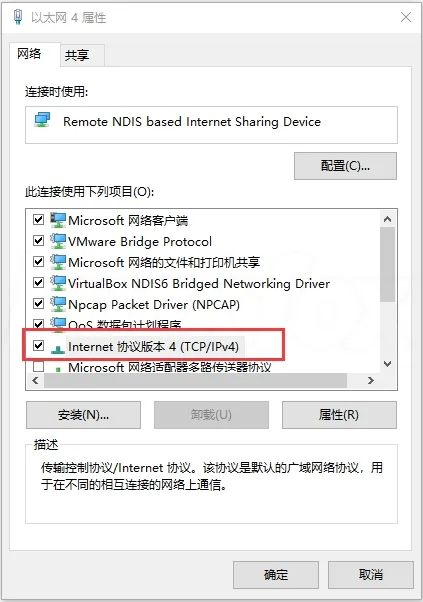
The network card's name is usually similar to "Remote NDIS based Internet Sharing Device." Right-click and choose Properties.

-
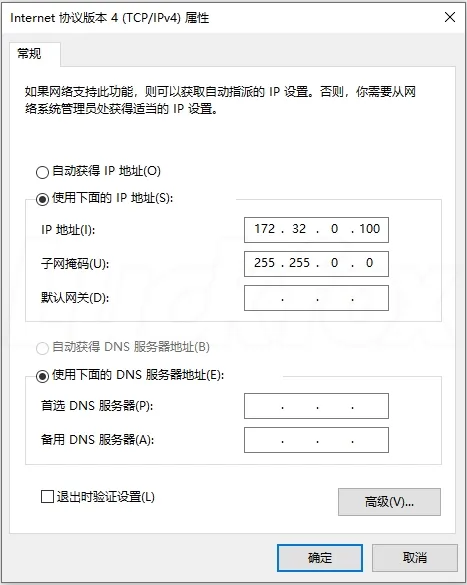
Double-click on "Internet Protocol Version 4 (TCP/IPv4)." Set the IPv4 address to 172.32.0.100 to avoid conflicts with other devices.
4. Stream Using VLC Media Player
-
Download and install VLC media player.
-
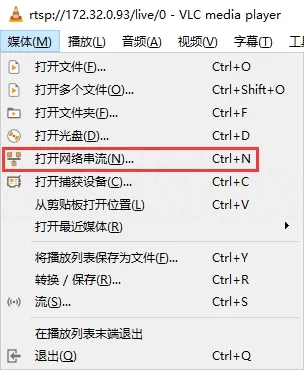
Open the VLC media player software. Navigate to Media -> Open Network Stream.
-
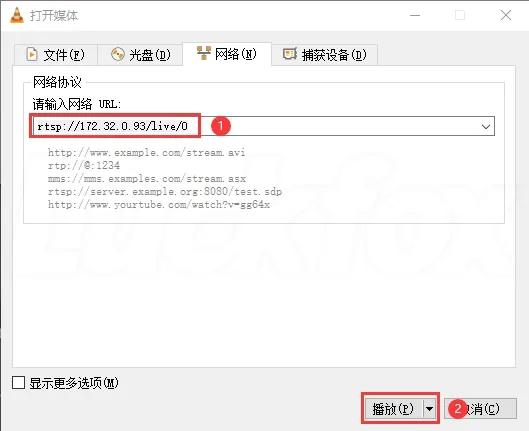
Enter the corresponding IP address: rtsp://172.32.0.93/live/0.
-
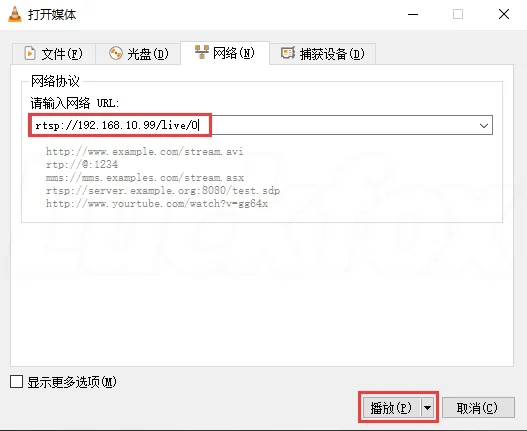
The Luckfox Pico Plus/Pro/Max version can also use the eth0 IP address for streaming.
-
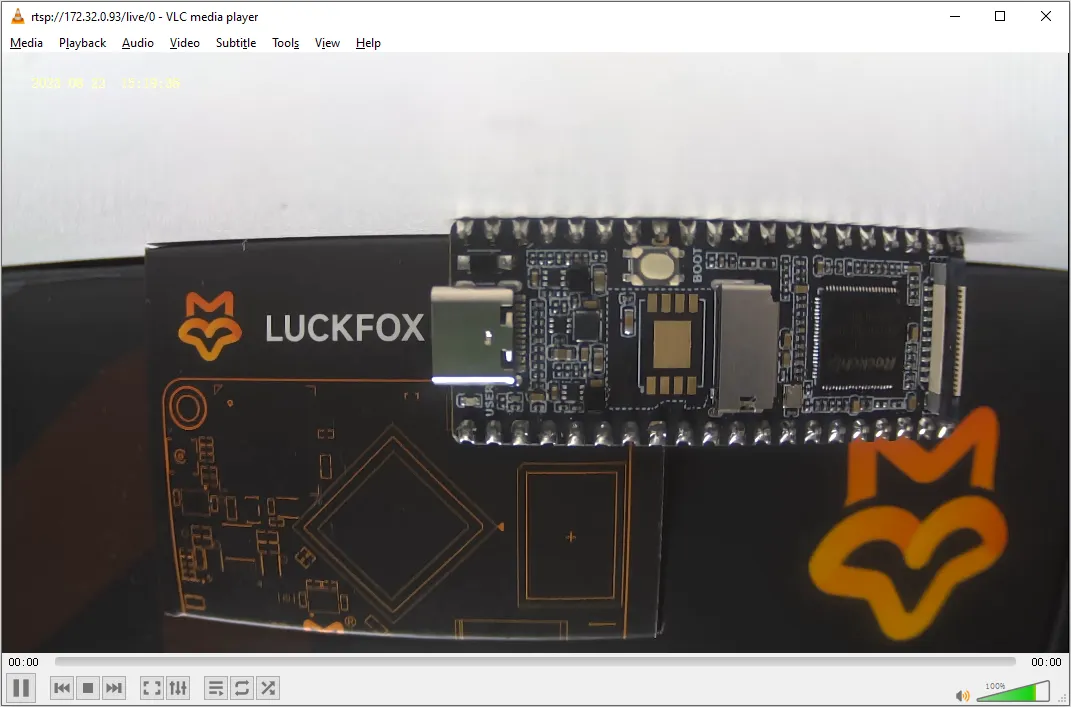
Click Play to view the camera feed. You can rotate the lens for focusing adjustments.
5. Optimize VLC Network Streaming
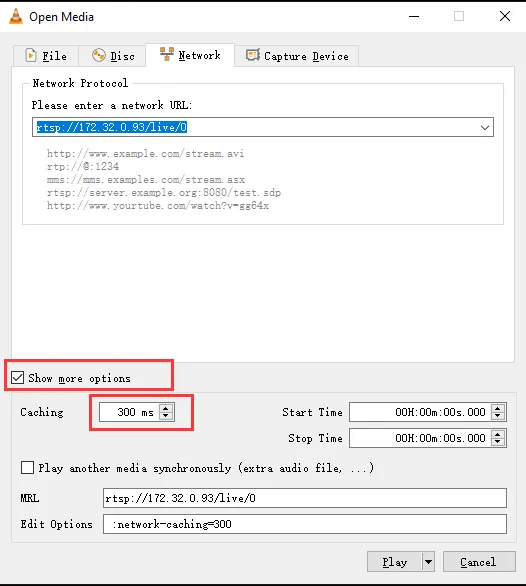
By default, VLC software buffers 1 second (1000ms=1s) of video, and you can moderately reduce the buffer time to improve real-time performance. However, setting the latency too low may lead to packet loss or stuttering, so it is recommended to keep it not lower than 300ms.
- The effect is as follows:
6. Capturing Raw Images with V4L2
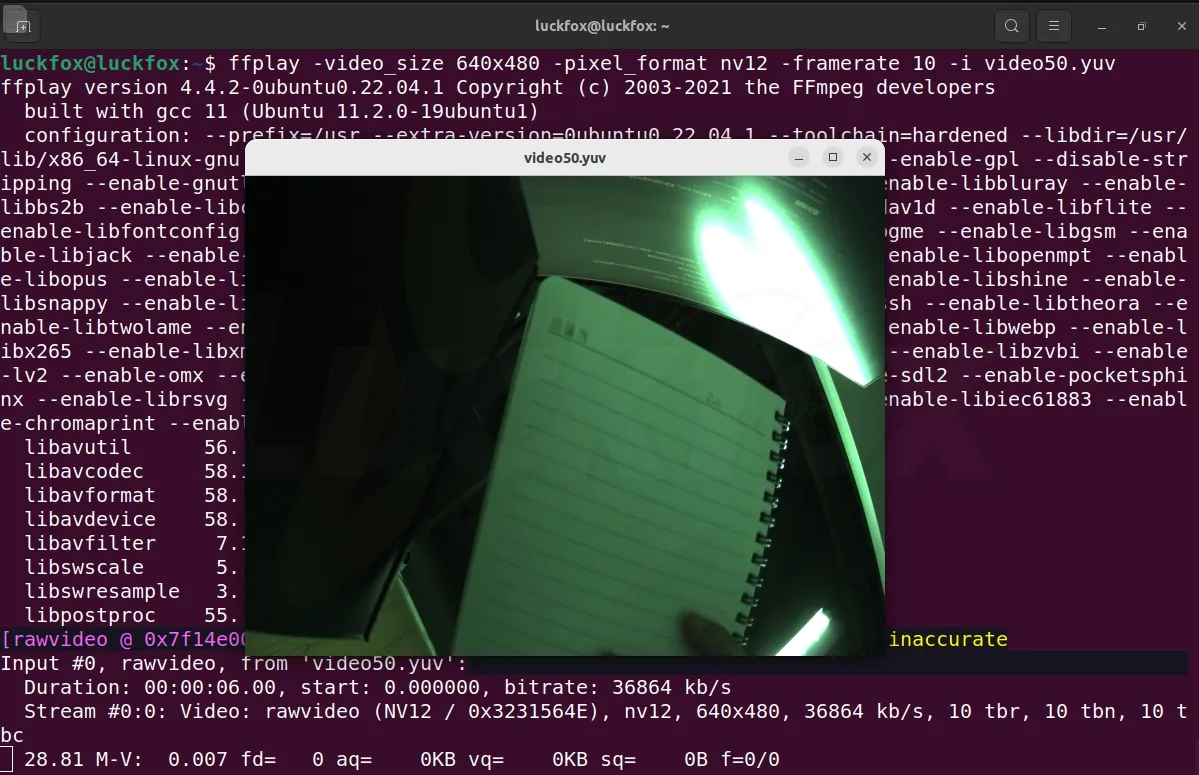
Note: Since the image data is not processed by the ISP (Image Signal Processor), video frames captured via the V4L2 interface may appear dark or greenish.
6.1 V4L2 Introduction
V4L2, short for Video for Linux 2, is a kernel framework on the Linux operating system designed to support video devices. It provides a set of APIs and driver interfaces that allow user-space applications to interact with various video devices such as cameras and TV cards. V4L2 is a part of the Linux kernel, dedicated to handling video input and output
6.2 V4L2 Framework
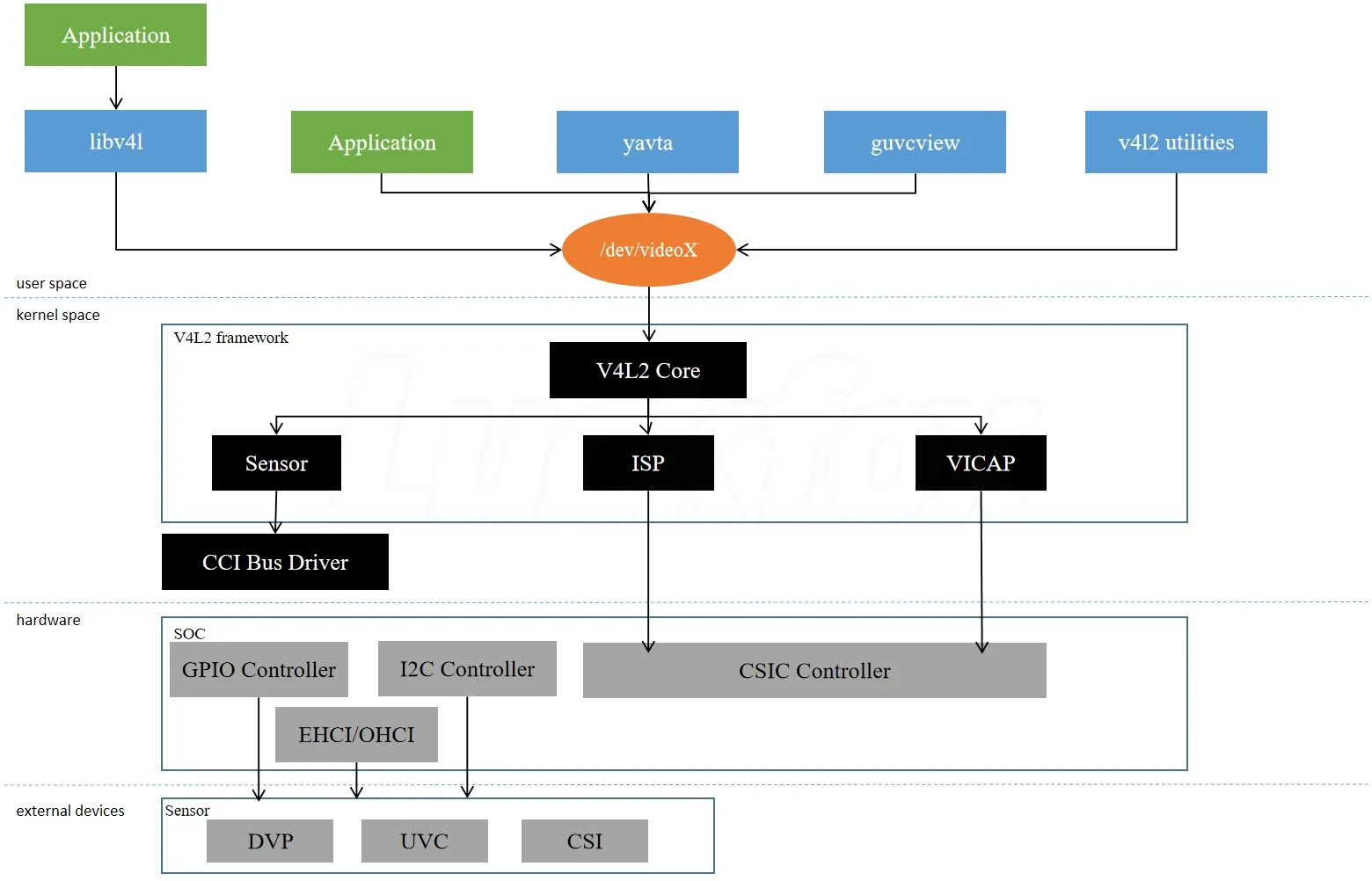
Video devices corresponding to V4L2 have /dev/videoX as their device nodes. Video devices use high-frequency cameras or cameras as input sources. The Linux kernel drives such devices, receiving and processing the corresponding video informatio.
- User Space
- Applications typically operate cameras using the
libv4llibrary or can choose to write applications based on the character device/dev/videoX. guvcviewis commonly used for USB cameras, providing a user-friendly graphical interface suitable for desktop environments (currently not supported on Luckfox Pico).yavtais typically used for CSI cameras, which are commonly employed in embedded systems.yavtais a lightweight command-line tool suitable for testing and debugging in a terminal environment (not enabled by default).v4l2 utilities: The v4l-utils toolset mainly includes two commonly used tools, namely media-ctl and v4l2-ctl.
- Applications typically operate cameras using the
- Kernel Space
- RKVICAP and RKISP drivers are mainly based on the v4l2/media framework. They implement hardware configuration, interrupt handling, control buffer rotation, and control subdevices (such as MIPI D-PHY and sensor) power-up and power-down functions. (For more detailed information, refer to the document Rockchip_Driver_Guide_VI_CN_v1.1.3.pdf)
- MIPI D-PHY is a physical layer protocol defined by the MIPI Alliance, commonly used to connect image sensors and image processors.
- Video Buffer 2 is a subsystem in the Linux kernel responsible for memory management and device I/O operations for video buffers in the Linux system. It is typically used for handling cameras and other video input devices.
- Cameras transfer video data to the processing unit through D-PHY. During this process, vb2 is responsible for allocating and managing memory buffers used to store video frames.
- CCI (Camera Control Interface): The camera control interface is used to send control commands from the image processor to the camera. It is mainly implemented through GPIO (power supply, chip select) and I2C (sending configuration commands to the sensor).
- Hardware
- CSIC Controller: Its main function is to achieve high-speed data transfer between the image sensor and the image processor.
- I2C Controller: Used for communication with the I2C block of the image sensor. This is typically used for configuring and controlling sensor parameters such as exposure time and gain.
- GPIO Controller: Used for communication with the image sensor. It is usually used to provide power or select the sensor, possibly by controlling the sensor's power or chip select pins.
- EHCI/OHCI: OHCI is mainly used for USB 1.1 devices, while EHCI is used to support USB 2.0 high-speed devices. The combination of these two provides the ability for the computer to simultaneously support different speed USB devices, providing a consistent software and hardware interface. Here, it refers to USB type cameras.
- External Devices
- Camera Interfaces: CSI (2 x 2Lanes or 1 x 4Lanes 2.5Gbps/Lane), DVP (BT601 / BT656 / BT1120 pclk: 150MHz), and USB 2.0.
6.3 V4L2-utils Toolkit
V4L2-utils is a set of utilities for testing and configuring V4L2 devices, providing command-line access to the V4L2 interface. The Luckfox SDK's Buildroot package has V4L2-utils enabled by default.
6.4 v4l2-ctl
-
List available video devices:
v4l2-ctl --list-devices# v4l2-ctl --list-devicesrkisp-statistics (platform: rkisp):/dev/video23/dev/video24rkcif-mipi-lvds (platform:rkcif):/dev/media2rkcif (platform:rkcif-mipi-lvds):/dev/video4/dev/video5/dev/video6/dev/video7/dev/video8/dev/video9/dev/video10/dev/video11/dev/video12/dev/video13/dev/video14rkisp_mainpath (platform:rkisp-vir0):/dev/video15/dev/video16/dev/video17/dev/video18/dev/video19/dev/video20/dev/video21/dev/video22/dev/media3USB Camera: USB Camera (usb-xhci-hcd.0.auto-1.1):/dev/video0/dev/video1/dev/media0USB 2.0 Camera: USB Camera (usb-xhci-hcd.0.auto-1.2):/dev/video2/dev/video3/dev/media1rkisp_mainpath: CSI CameraUSB Camera: USB Camera
-
List supported formats for a specific device:
v4l2-ctl --device=/dev/video15 --list-formats-extv4l2-ctl --device=/dev/video0 --list-formats-ext -
Display camera parameters:
v4l2-ctl --device=/dev/video15 --list-ctrls -
Record video:
# For CSI Camera (requires turning off the built-in RKIPC first)killall rkipcv4l2-ctl --device=/dev/video15 --set-fmt-video=width=640,height=480,pixelformat=NV12 --stream-mmap --stream-to=video50.yuv --stream-count=30# For USB Camerav4l2-ctl --device=/dev/video0 --set-fmt-video=width=640,height=480,pixelformat=YUYV --stream-mmap --stream-to=video100.yuv --stream-count=30--device: Specifies the camera's corresponding device file.--set-fmt-video: Specifies the width, height, and pixel format (identifying the pixel format).--stream-mmap: Specifies the buffer type as mmap, i.e., buffers allocated by the kernel that are physically contiguous or mapped through iommu.--stream-to: Specifies the file path for saving frame data.--stream-skip: Specifies to discard the first 3 frames (not saved to the file).--stream-count: Specifies the number of frames to capture, excluding those discarded with --stream-skip.
-
If the error "The pixelformat 'UYVY' is invalid" appears, it indicates that the camera does not support this format. Use the second step's method to check the formats supported by the camera.
-
If you see
<<<<<<<<< 5.79 fpsit indicates successful video recording.
6.5 media-ctl
-
Check how many media nodes are available:
# ls /dev/media*/dev/media0 /dev/media1 /dev/media2 -
View the topology structure:
media-ctl -d /dev/media3 -p -
If the above command does not read the Entity of the CSI camera, use the following command to view all information:
# v4l2-ctl --all -d /dev/video15Driver Info:Driver name : rkisp_v7Card type : rkisp_mainpathBus info : platform:rkisp-vir0Driver version : 2.0.0Capabilities : 0x84201000Video Capture MultiplanarStreamingExtended Pix FormatDevice CapabilitiesDevice Caps : 0x04201000Video Capture MultiplanarStreamingExtended Pix FormatMedia Driver Info:Driver name : rkisp-vir0Model : rkisp0Serial :Bus info :Media version : 5.10.110Hardware revision: 0x00000000 (0)Driver version : 5.10.110Interface Info:ID : 0x03000007Type : V4L VideoEntity Info:ID : 0x00000006 (6)Name : rkisp_mainpathFunction : V4L2 I/OPad 0x01000009 : 0: SinkLink 0x0200000a: from remote pad 0x1000004 of entity 'rkisp-isp-subdev' (Unknown V4L2 Sub-Device): Data, EnabledPriority: 2Format Video Capture Multiplanar:Width/Height : 2304/1296Pixel Format : 'NV12' (Y/CbCr 4:2:0)Field : NoneNumber of planes : 1Flags :Colorspace : DefaultTransfer Function : DefaultYCbCr/HSV Encoding: DefaultQuantization : Full RangePlane 0 :Bytes per Line : 2304Size Image : 4478976Selection Video Capture: crop, Left 0, Top 0, Width 2304, Height 1296, Flags:Selection Video Capture: crop_bounds, Left 0, Top 0, Width 2304, Height 1296, Flags:Selection Video Output: crop, Left 0, Top 0, Width 2304, Height 1296, Flags:Selection Video Output: crop_bounds, Left 0, Top 0, Width 2304, Height 1296, Flags:Image Processing Controls -
Check which device can output images:
media-ctl -d /dev/media3 -e "rkisp_mainpath"
6.6 Displaying Videos
The captured images or videos can be copied to PC Ubuntu and viewed using the ffplay tool. ffplay is a command-line tool in the FFmpeg toolkit used to play audio and video files. It is based on the FFmpeg library, supports a wide range of audio/video formats, and can play or preview multimedia content in real-time in the command line.
-
Play a video:
ffplay -video_size 640x480 -pixel_format nv12 -framerate 10 -i video50.yuvffplay -video_size 640x480 -pixel_format yuyv422 -framerate 10 -i video100.yuv-video_size size: Set the frame size.-pixel_format format: Set the pixel format.-framerate 10: Set the video frame rate to 10 frames per second.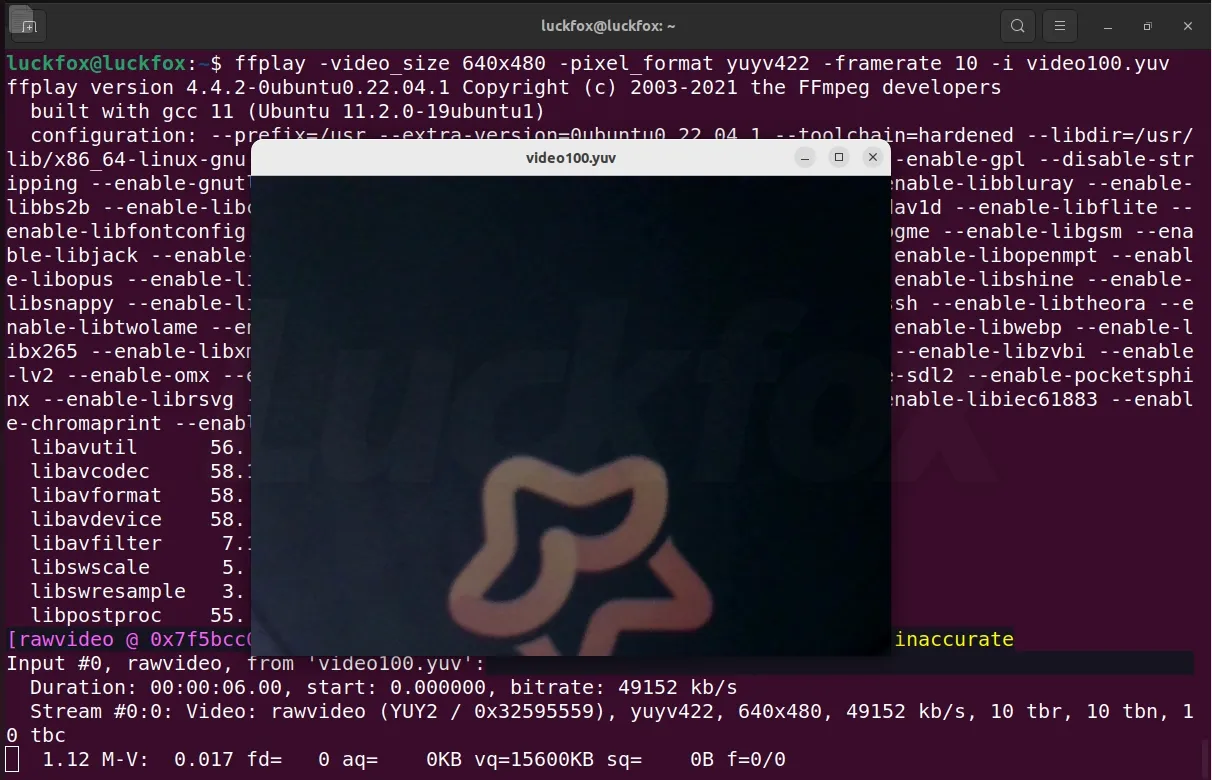
-
Convert video formats
ffmpeg -f rawvideo -pixel_format yuyv422 -video_size 640x480 -framerate 30 -i video.yuv -c:v libx264 output.mp4